
How Can We Help?
Advanced System Information & Remote Administration
Advanced System Information & Remote Administration
RemoteToPC’s Advanced System Information screen allows IT administrators to view detailed information about remote computers, monitor system performance, and perform administrative tasks without opening a full remote desktop session.
From the RemoteToPC Command Center, you can view hardware specifications, monitor CPU and memory usage, check network activity, review disk space, and identify or terminate running processes.
How to Access Advanced System Information
- Log in to your RemoteToPC account and open the Command Center.
- Select Computers to display your managed computers.
- Locate the computer you want to inspect.
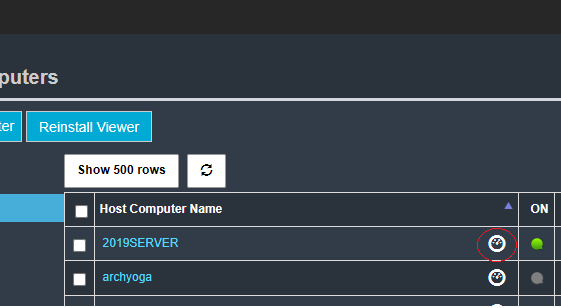
- Click the gauge icon to the right of the computer’s name.
- The Advanced System Information screen will open for the selected computer.
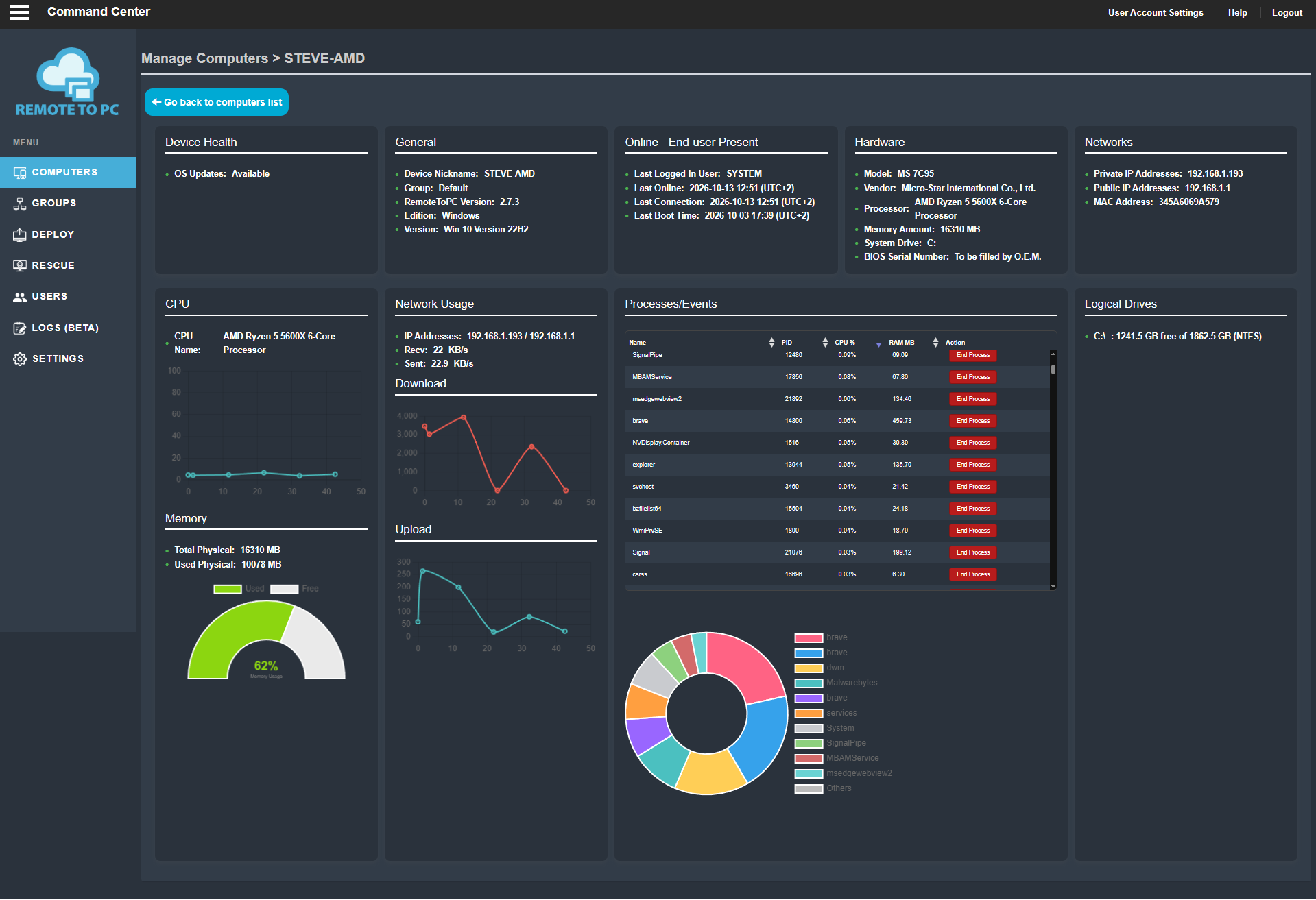
The screen displays several panels containing system information, performance statistics, and administrative tools.
System Information and Device Health
The upper portion of the Advanced System Information screen provides an overview of the selected computer.
Device Health
Displays the availability of Windows operating system updates, helping administrators identify computers that may require maintenance.
General Information
Provides basic information about the remote computer, including:
- Computer name
- Assigned RemoteToPC group
- Installed RemoteToPC version
- Windows edition and operating system version
Online Status and User Activity
Displays information about recent computer activity, including:
- Last logged-in Windows user
- Last online time
- Last connection time
- Last boot time
These details help administrators determine when a computer was last active, connected, or restarted.
Hardware Information
Displays hardware specifications, including:
- Computer model and manufacturer
- Processor model
- Installed physical memory (RAM)
- System drive
- BIOS serial number, when available
Network Information
Provides network identification details, including:
- Private IP address
- Public IP address
- MAC address
This information can help administrators identify computers and troubleshoot connectivity problems.
Monitoring CPU, Memory, and Network Usage
Advanced System Information includes performance monitoring tools that help administrators investigate resource usage and computer performance problems.
CPU Usage
Displays the computer’s processor information and a graph showing CPU utilization.
This panel can help identify unusually high processor usage that may contribute to slow computer performance.
Memory Usage
Displays:
- Total physical memory
- Currently used memory
- Percentage of RAM in use
A visual memory usage gauge makes it easy to see how much system memory is being consumed.
High memory usage may indicate that one or more applications are using excessive system resources.
Network Usage
Displays network activity information, including:
- IP address information
- Incoming (received) network traffic
- Outgoing (sent) network traffic
- Download activity graph
- Upload activity graph
These statistics help administrators investigate network activity and potential connectivity or performance problems.
Logical Drives
Displays information about the computer’s logical drives, including drive capacity and available free disk space.
This information helps identify computers that may be running low on storage.
Viewing and Managing Running Processes
The Processes/Events panel allows administrators to view running Windows processes, identify applications consuming system resources, and remotely terminate problematic processes.
The process table includes the following information:
- Name: Name of the running process
- PID: Windows process identifier
- CPU %: Percentage of processor resources being used
- RAM MB: Amount of memory consumed by the process
- Action: Button to terminate the selected process
You can scroll through the process list and sort the columns to identify processes consuming excessive CPU or memory.
How to Kill a Running Process
If an application becomes unresponsive or a process is consuming excessive system resources, you can terminate it remotely using RemoteToPC.
- Open the computer’s Advanced System Information screen.
- Locate the Processes/Events panel.
- Scroll through the running processes or sort by CPU or RAM usage to identify the process.
- Verify that you have selected the correct process and click the red Kill Process button beside it.
- When the password prompt appears, enter the remote computer’s RemoteToPC access password to authorize the action.
- Submit the password to terminate the process, then check the process list to verify that it has stopped.
Important: Terminating a process may cause unsaved data to be lost. Avoid terminating essential Windows system processes, security software, or other critical services unless you understand the consequences.
[Insert screenshot: Processes/Events panel showing the Kill Process button]
When Is Process Management Useful?
Remote process management can help administrators:
- Terminate frozen or unresponsive applications
- Identify processes using excessive CPU resources
- Investigate high memory consumption
- Stop problematic background applications
- Troubleshoot performance issues without opening a remote desktop session
Do I Need to Start a Remote Desktop Session?
No. Advanced System Information is accessible directly from the Command Center without launching a full remote desktop connection.
Administrators can view system information, monitor resource usage, and manage running processes without taking control of the user’s desktop.
The remote computer must be online and communicating with RemoteToPC for current system information and remote administration actions to be available.
Common Uses for Advanced System Information
RemoteToPC Advanced System Information can be used to:
- Investigate slow or unresponsive computers
- Identify applications consuming excessive CPU or RAM
- Terminate frozen or problematic processes
- Check available disk space
- Review hardware specifications and Windows version information
- Investigate network activity and connectivity problems
- Check computer activity and restart information
- Troubleshoot remote systems without interrupting the user’s desktop session
Troubleshooting
System Information Is Not Updating
Verify that the remote computer is online and communicating with RemoteToPC. Refresh the information and try again.
Unable to Kill a Process
Verify that you entered the correct RemoteToPC access password for the remote computer.
Some Windows processes are protected or require elevated permissions and may not be terminable.
Some Hardware or System Information Is Missing
Certain information may not be available on every computer, depending on its hardware, Windows version, or the information reported by the operating system.