
How Can We Help?
-
Getting Started
-
Command Center
-
User Account
-
Tutorial Videos
-
Remote Access
-
Remote Monitoring
-
Troubleshooting
- Corrupt .NET Tmp folder
- Windows Viewer won't launch .NET error
- Windows XP and 2003 Server
- Web client problem loading
- Black Screen / Headless Display
- WOL - Troubleshooting Wake on Lan
- Metrics unknown or wrong values
- 2008 Server ctr-alt-del Workaround
- General Troubleshooting Ideas
- Connection Problems
- Installation Problems
- Metrics not showing up
- Disconnecting connection
- Advanced Monitoring and Management screen not displaying
-
Firewall
-
Remote Rescue
Remote Desktop App Icon Menu
REMOTE DESKTOP APPLICATION TOP LEVEL MENU:
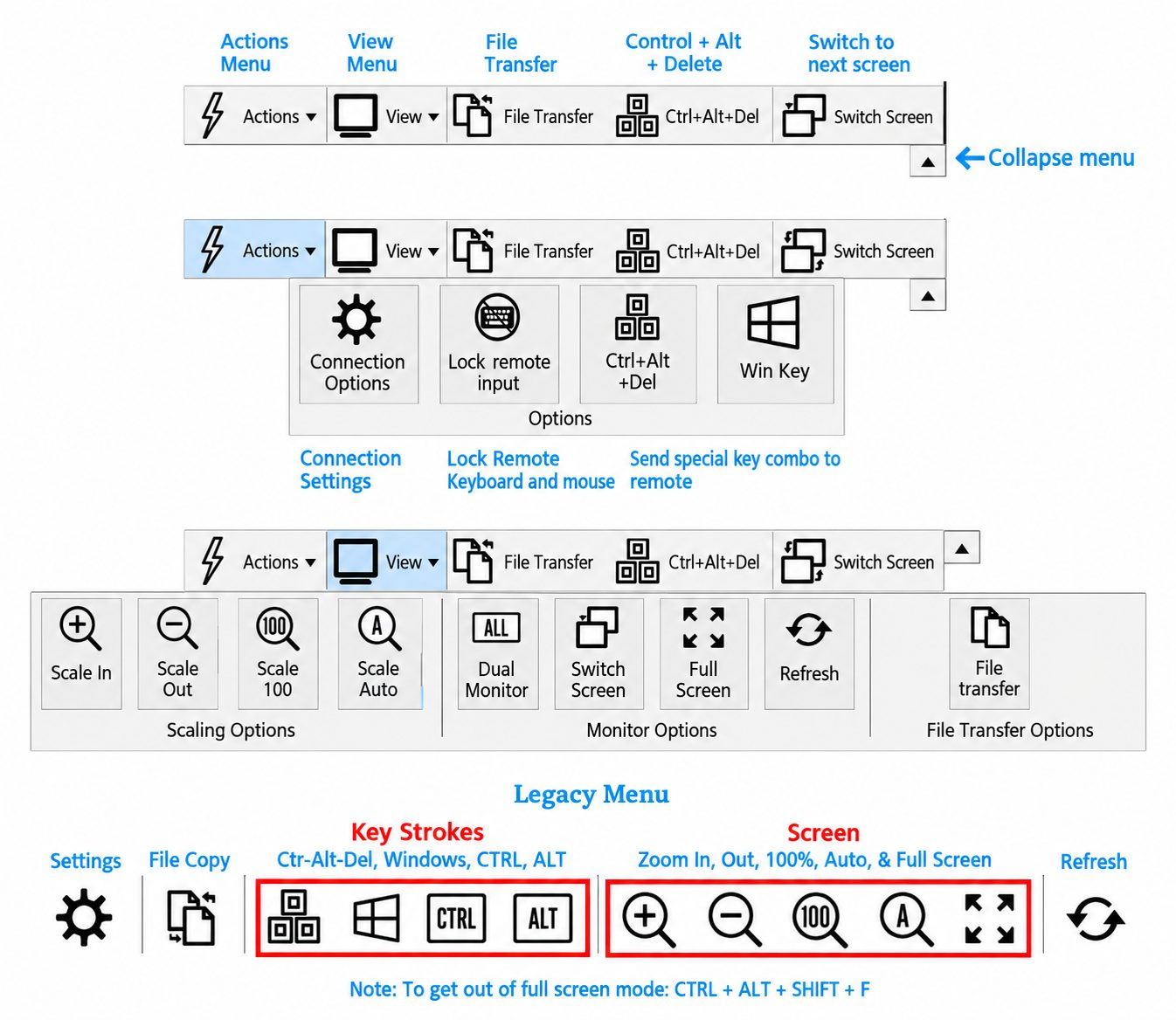
Remote Session Menu
Use the toolbar at the top of your remote session to adjust the display, transfer files, and access remote computer controls.
Actions
Connection Options: Open settings for your remote connection.
Lock Remote Input: Prevent keyboard and mouse input at the remote computer while you work.
Ctrl+Alt+Del: Send this key combination to the remote computer to access Windows security options.
Win Key: Send a Windows key press to the remote computer.
View
Scale In / Scale Out: Enlarge or reduce the remote desktop view.
Scale 100: Display the remote desktop at its original size.
Scale Auto: Fit the remote desktop to your session window.
Dual Monitor: View both remote monitors together.
Switch Screen: Switch to the next remote monitor.
Full Screen: Expand the remote session to fill your screen.
Refresh: Redraw the remote screen.
File Transfer
Open the file transfer window to copy files between your computer and the remote computer.
Collapse Menu
Click the small arrow on the right to collapse or expand the menu.
Legacy Menu
Older versions use the compact toolbar shown below. Its icons provide access to connection settings, file copying, special keys, display scaling, full screen, and refresh.
Tip: Press Ctrl + Alt + Shift + F to exit full screen.