
How Can We Help?
Quick Start Guide
Get connected to your first remote computer in just a few minutes.
Step 1 — Install RemoteToPC on your remote computer
On the computer you want to access remotely:
- Log in to your Command Center.
- Click Add Host Computer to download the installer.
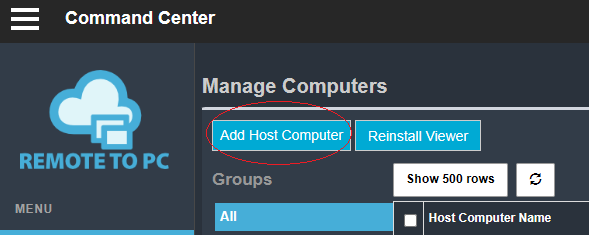
- Run the installer, give your computer a name, and create an access password.
Once installation is complete, your computer will appear in the Command Center.
Using a Mac? Follow the Mac Host Installation guide.
First-Time Setup & Connection Video
Step 2 — Connect from another computer
On the computer you’re connecting from:
- Log in to your Command Center.
- Find your newly installed computer in the list.
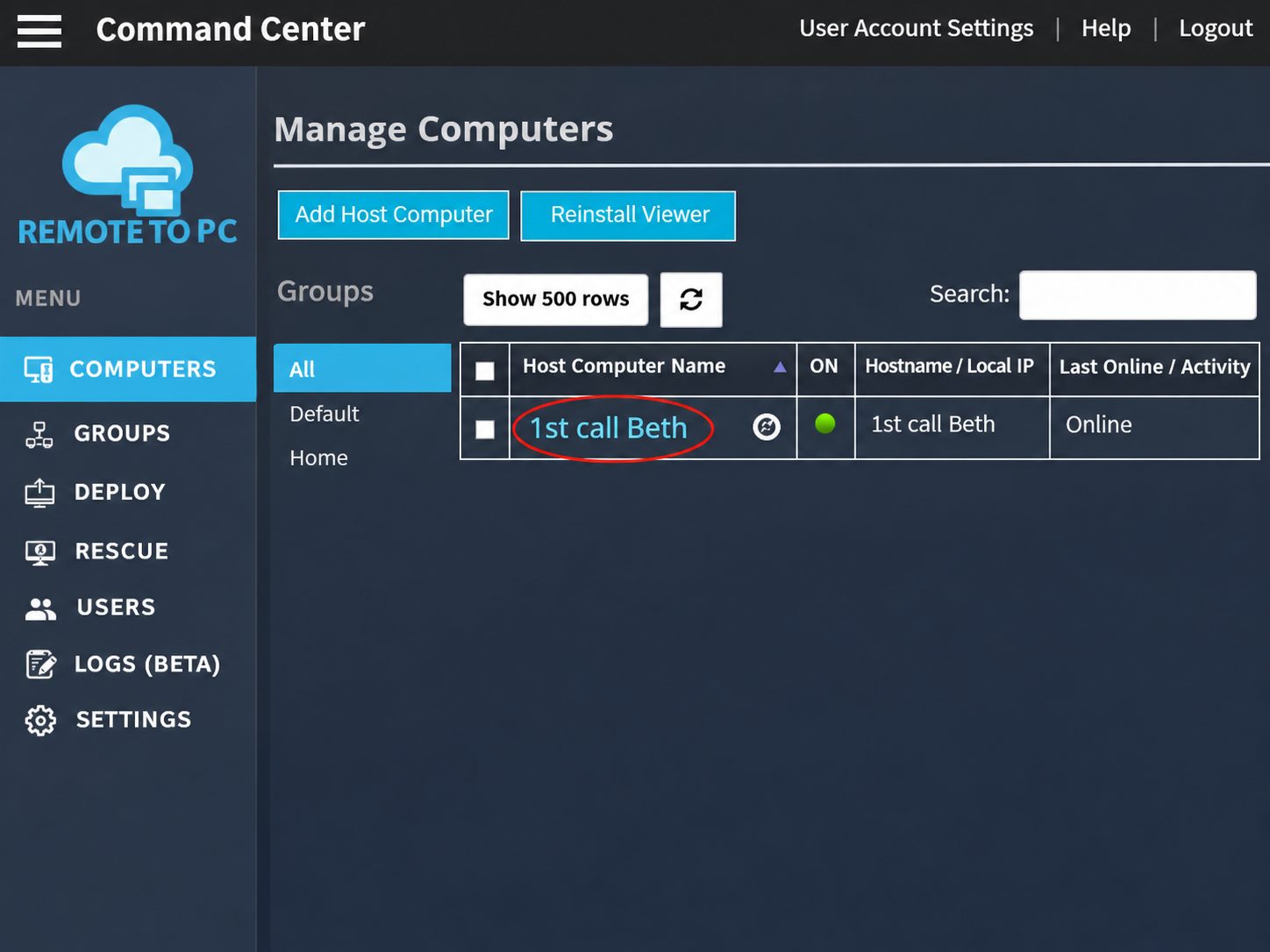
- Click its computer name to connect.
First connection? You’ll be prompted to install the RemoteToPC Viewer. Follow the instructions, then click your computer’s name again to connect.
Watch the First Connection Video
Step 3 — Enter your access password
When prompted, enter the access password you created when installing RemoteToPC on the remote computer.

You’re connected! Your remote computer’s desktop will open, ready for you to use.
Need help?
- Computer offline? Make sure the remote computer is turned on, connected to the internet, and showing a green online indicator in the Command Center.
- Password not working? Use the computer’s access password, not your RemoteToPC account password.
- Still having trouble? Visit our Help Center for more guides and troubleshooting.
Ready to get started? Open Your Command Center